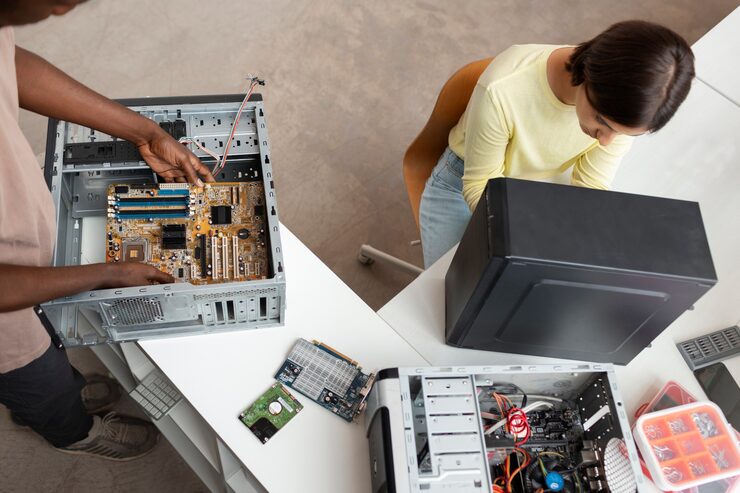

The Decision Most People Get Wrong in Both Directions
Computer upgrade and replacement decisions fall into two common error patterns: holding onto an old machine too long (upgrading components to extend the life of a system where the fundamental bottleneck is the aging platform, not any specific component) and replacing too readily (buying a whole new system when a targeted component upgrade would have solved the performance problem at a fraction of the cost). Both errors cost money — one through missed performance improvement, one through unnecessary system replacement.
The framework for making this decision well is diagnostic: identifying what specifically is slow or inadequate, understanding what component is causing that limitation, and evaluating whether addressing that component within the existing system is possible, cost-effective, and will actually solve the problem.
The Diagnostic First Step
Before any upgrade or replacement decision, identify the actual bottleneck causing the performance issue. Task Manager on Windows (CPU, RAM, and disk usage visible during the slow task) and Activity Monitor on Mac provide the first level of insight: high CPU usage during a slow task suggests CPU bottleneck; high RAM usage with significant disk activity (paging) suggests RAM bottleneck; high disk activity alone on a mechanical hard drive during data-intensive tasks suggests storage bottleneck.
More detailed tools (HWiNFO on Windows, iStatMenus on Mac, Cinebench for CPU testing, UserBenchmark for comparative system assessment) provide more granular performance data and comparison against typical systems with similar components. The objective of this diagnostic step is to answer ‘what’s actually causing the slow experience’ before spending any money on a solution to what might be the wrong problem.
Component Upgrades That Consistently Deliver: RAM and Storage
Two upgrades consistently deliver significant performance improvement relative to their cost across a wide range of system ages: adding RAM (in systems that are genuinely memory-constrained, which produces high paging activity visible in Task Manager) and replacing a mechanical hard drive with an SSD. These two upgrades have the highest percentage of success stories of any component upgrade category because they address fundamental bottlenecks that persist regardless of CPU generation.
A 5-year-old laptop with 8 GB RAM and a mechanical hard drive that’s slow and frustrating in daily use will feel dramatically faster after a RAM upgrade to 16 GB and an SSD replacement than it did with the original components — often faster than its owner realizes the hardware could feel. These upgrades for a compatible system typically cost $50–$150 combined and can restore 3–4 more years of productive service life.
When Upgrading Makes Less Sense: The Platform Ceiling
Component upgrades are limited by the platform — the CPU and motherboard generation — they’re installed into. A RAM upgrade on an older platform that tops out at 16 GB and uses DDR3 memory provides meaningful improvement but also represents the ceiling of what’s achievable on that platform. Adding a GPU to a system with an aging CPU means the CPU limits the performance the GPU can deliver. At some point, the components available for an older platform don’t close the gap with what newer systems offer.
The platform ceiling is where the upgrade-vs-replace decision tilts toward replace. A system that needs a new CPU for meaningful performance improvement typically needs a new motherboard (CPUs are generation and socket-specific), and a new motherboard often requires new RAM (memory standards change between generations). At the point where a meaningful upgrade requires CPU + motherboard + RAM replacement, the cost is approaching or exceeding new pre-built system pricing with the addition of sourcing risk and labor.
The Laptop Upgrade Reality
Laptop upgrades are more constrained than desktop upgrades by the increasing prevalence of soldered components. Many modern laptops — essentially all Apple Silicon Macs, many ultrabooks, and an increasing number of mid-range laptops — have soldered RAM and soldered storage that can’t be upgraded after purchase. The laptop you buy is the laptop you’ll have for its service life.
For laptops with soldered components, the upgrade vs. replace decision is replaced by the maintain vs. replace decision: the only meaningful upgrade interventions are cleaning the cooling system (removing accumulated dust that causes thermal throttling, which produces genuine performance restoration on older laptops), repasting the CPU with fresh thermal compound, and — where physically accessible — replacing a failing battery. If these maintenance steps don’t address the performance issue, and the platform is genuinely older, replacement is typically the correct path.